Canva Tutorial For Beginners: A Free 2 Hour Masterclass
Bring Your Own Laptop
1,588,551 views
Watch + Join BYOL for the full Canva course and 10% off: https://byol.com/cvlyt1
Download the FREE exercise files here: https://byol.com/cvlyt3
Get a free trial of Canva here: https://byol.com/canvafree
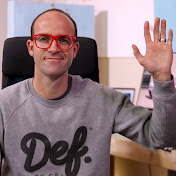
Welcome to the Canva Design Essentials course! Led by professional designer Dan Scott, this course is your gateway to mastering Canva.
You’ll learn:
Design Fundamentals
Social Media & Marketing Graphics
Logo Design & Branding
Create Professional Documents & Presentations
Learn how to Edit Video
Canva’s AI Features
Who this course is for:
Absolutely no previous Canva experience is required.
This course is designed for newcomers to Canva & design in general, so no prior design experience is necessary.
This is a relaxed, well-paced introduction, perfect for producing a wide range of projects. Only basic computer skills are necessary - if you can send emails and surf the internet, you're more than capable of mastering this course.
What you'll learn:
Creating Designs in Canva
Working with Free & Paid Images in Canva
How to Crop Photos in Canva
How to Crop with Frames in Canva
Uploading Your Own Images into Canva
Where to Get Free Photos for Canva
Squares, Circles + Layers & Position
How to Export a JPG & PNG from Canva
Mixing Colors in Canva
Design Styles & Color Palettes in Canva
Working with Text & Fonts in Canva
Adding Drop Shadows to Text in Canva
Curving Text Around a Badge
Group, Lock & Aligning Elements in Canva
Creating Dotted & Arrowed Lines with Text
Modifying Shapes in Canva
Changing Color of Graphics & Collections
Editing the Background Remover Tool
AI Image Generator with Magic Media in Canva
Mockups in Canva
Testing & Posting on Your Phone for Instagram
Editing Canva Designs on Your Phone
Using Canva Template Logos
MoodBoard WhiteBoard Brainstorm
Logo Competitor Analysis in Canva
Designing a Custom Logo in Canva
Picking Fonts for Your Logo
Choosing Logo Colors
Using Gradients in Canva
Understanding Brand Kits
Light, Dark & Stacked Versions of Your Logo
Working with a Word Style Doc in Canva
Font Combinations & Pairing in Canva
Changing Text Styles in Canva
Styling Tables in Canva
Designing Header Banners in Canva Docs
Using Highlight Blocks, Dividers & Quotes in Canva Docs
Presentation Templates & Styles in Canva
Using Layouts in Presentations in Canva
Page Transitions in Presentations
Animating Pages & Page Elements
Creating Charts in Canva
Adding QR Codes in Canva
Adjusting Images in Canva
0:00 Introduction to Canva Design Essentials
2:16 Getting started with Canva Design Essentials
5:57 Your Canva Design Brief
7:47 Creating Designs in Canva
11:39 Working with Images in Canva
21:30 Cropping Images in Canva
26:24 Using Frames in Canva
35:07 Naming & Saving in Canva
39:34 Uploading your own Images in Canva
41:40 Where to get Free Images for Canva
45:39 Workspaces in Canva
51:31 Squares, Circles, Layers & Positions in Canva
56:42 Exporting JPG's & PNG's from Canva
58:10 Class Project 1 - Images in Shapes
1:02:22 Creating great colors in Canva
1:09:37 Styles & Color Palettes in Canva
1:15:40 Working with text in Canva
1:24:24 Class Project 2 - Reopening Quote
1:29:34 Text Effects in Canva
1:35:38 Curving text in Canva
1:39:46 Grouping, Locking & Aligning in Canva
1:45:02 Making Lines in Canva
1:52:39 Making Shapes in Canva
1:55:57 Graphics in Canva
2:04:26 Class Project 3 - Instagram Post from Canva
2:08:39 Background Remover in Canva
2:16:00 Class Project 4 - Background Remover in Canva
Join the Bring Your Own Laptop Facebook Group: https://www.byol.com/FB
Follow me on Instagram: https://www.byol.com/IG
Follow me on TikTok: https://www.byol.com/tiktok/
Follow me on Twitter: / danlovesadobe
Join the LinkedIn Group: https://www.byol.com/LINKEDIN/
#canva #canvatutorial
HUMR1FLB5UQT62KY
20 Comments

I thought it'll be a bit advanced but it's for beginners, anyways great effort
Canva Tutorial For Beginners: A Free 2 Hour Masterclass
Bring Your Own Laptop
1,588,551 views
Watch + Join BYOL for the full Canva course and 10% off: https://byol.com/cvlyt1
Download the FREE exercise files here: https://byol.com/cvlyt3
Get a free trial of Canva here: https://byol.com/canvafree
Welcome to the Canva Design Essentials course! Led by professional designer Dan Scott, this course is your gateway to mastering Canva.
You’ll learn:
Design Fundamentals
Social Media & Marketing Graphics
Logo Design & Branding
Create Professional Documents & Presentations
Learn how to Edit Video
Canva’s AI Features
Who this course is for:
Absolutely no previous Canva experience is required.
This course is designed for newcomers to Canva & design in general, so no prior design experience is necessary.
This is a relaxed, well-paced introduction, perfect for producing a wide range of projects. Only basic computer skills are necessary - if you can send emails and surf the internet, you're more than capable of mastering this course.
What you'll learn:
Creating Designs in Canva
Working with Free & Paid Images in Canva
How to Crop Photos in Canva
How to Crop with Frames in Canva
Uploading Your Own Images into Canva
Where to Get Free Photos for Canva
Squares, Circles + Layers & Position
How to Export a JPG & PNG from Canva
Mixing Colors in Canva
Design Styles & Color Palettes in Canva
Working with Text & Fonts in Canva
Adding Drop Shadows to Text in Canva
Curving Text Around a Badge
Group, Lock & Aligning Elements in Canva
Creating Dotted & Arrowed Lines with Text
Modifying Shapes in Canva
Changing Color of Graphics & Collections
Editing the Background Remover Tool
AI Image Generator with Magic Media in Canva
Mockups in Canva
Testing & Posting on Your Phone for Instagram
Editing Canva Designs on Your Phone
Using Canva Template Logos
MoodBoard WhiteBoard Brainstorm
Logo Competitor Analysis in Canva
Designing a Custom Logo in Canva
Picking Fonts for Your Logo
Choosing Logo Colors
Using Gradients in Canva
Understanding Brand Kits
Light, Dark & Stacked Versions of Your Logo
Working with a Word Style Doc in Canva
Font Combinations & Pairing in Canva
Changing Text Styles in Canva
Styling Tables in Canva
Designing Header Banners in Canva Docs
Using Highlight Blocks, Dividers & Quotes in Canva Docs
Presentation Templates & Styles in Canva
Using Layouts in Presentations in Canva
Page Transitions in Presentations
Animating Pages & Page Elements
Creating Charts in Canva
Adding QR Codes in Canva
Adjusting Images in Canva
0:00 Introduction to Canva Design Essentials
2:16 Getting started with Canva Design Essentials
5:57 Your Canva Design Brief
7:47 Creating Designs in Canva
11:39 Working with Images in Canva
21:30 Cropping Images in Canva
26:24 Using Frames in Canva
35:07 Naming & Saving in Canva
39:34 Uploading your own Images in Canva
41:40 Where to get Free Images for Canva
45:39 Workspaces in Canva
51:31 Squares, Circles, Layers & Positions in Canva
56:42 Exporting JPG's & PNG's from Canva
58:10 Class Project 1 - Images in Shapes
1:02:22 Creating great colors in Canva
1:09:37 Styles & Color Palettes in Canva
1:15:40 Working with text in Canva
1:24:24 Class Project 2 - Reopening Quote
1:29:34 Text Effects in Canva
1:35:38 Curving text in Canva
1:39:46 Grouping, Locking & Aligning in Canva
1:45:02 Making Lines in Canva
1:52:39 Making Shapes in Canva
1:55:57 Graphics in Canva
2:04:26 Class Project 3 - Instagram Post from Canva
2:08:39 Background Remover in Canva
2:16:00 Class Project 4 - Background Remover in Canva
Join the Bring Your Own Laptop Facebook Group: https://www.byol.com/FB
Follow me on Instagram: https://www.byol.com/IG
Follow me on TikTok: https://www.byol.com/tiktok/
Follow me on Twitter: / danlovesadobe
Join the LinkedIn Group: https://www.byol.com/LINKEDIN/
#canva #canvatutorial
HUMR1FLB5UQT62KY